After you pay, your server is created first. The app is installed only when the server is running and accepts logins. A fresh server can take a few minutes to get there, so the first step is patience: you can close the page, and we email you when the app is ready.
1. Installing
Open My servers and click your server. The Overview tab shows a card called Installing followed by the app name. It first says it is connecting to your server. This usually takes 5 to 10 minutes in total, and some apps take longer (see the times in which app to choose).
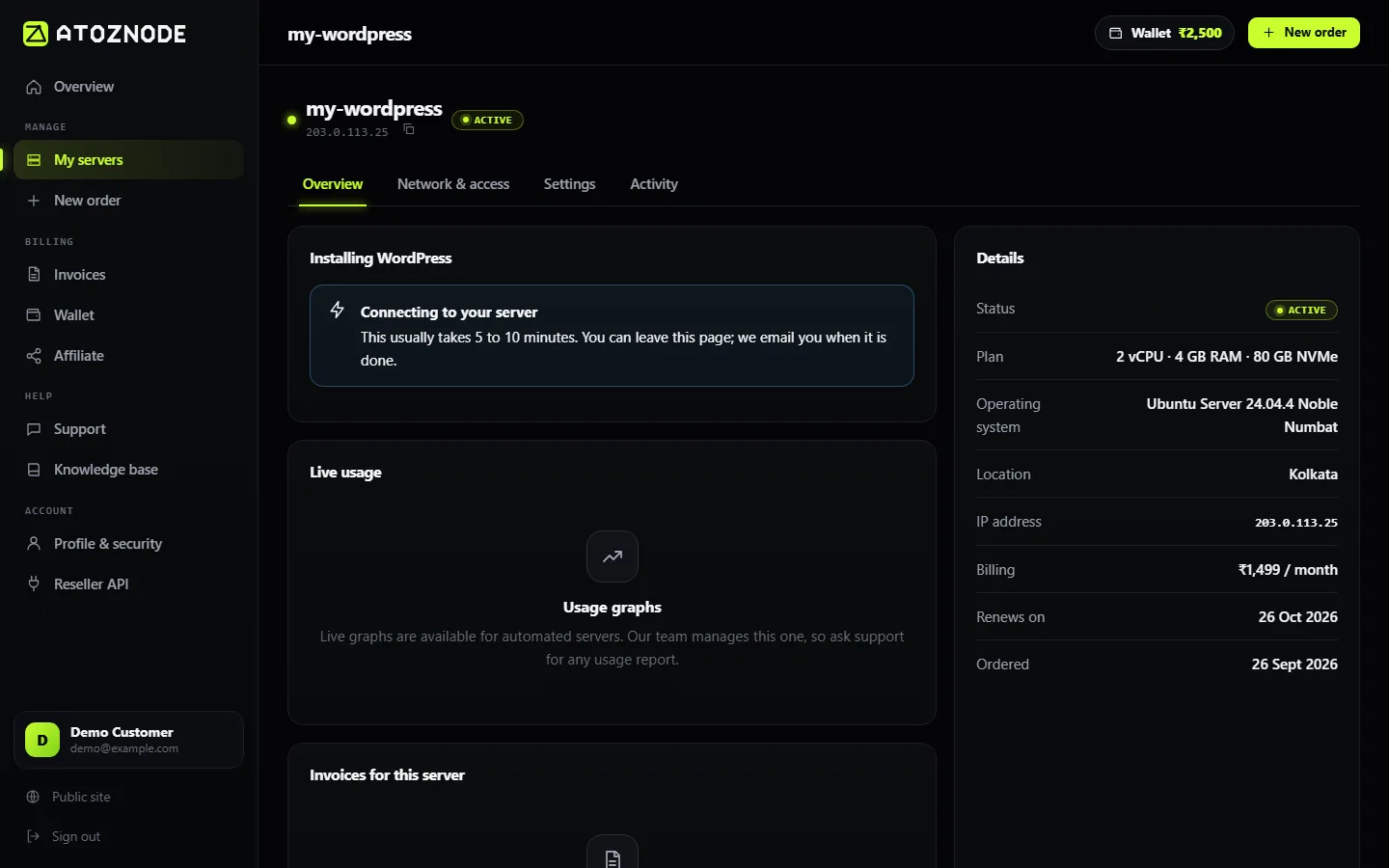
The page refreshes every few seconds. You do not need to do anything.
2. Ready
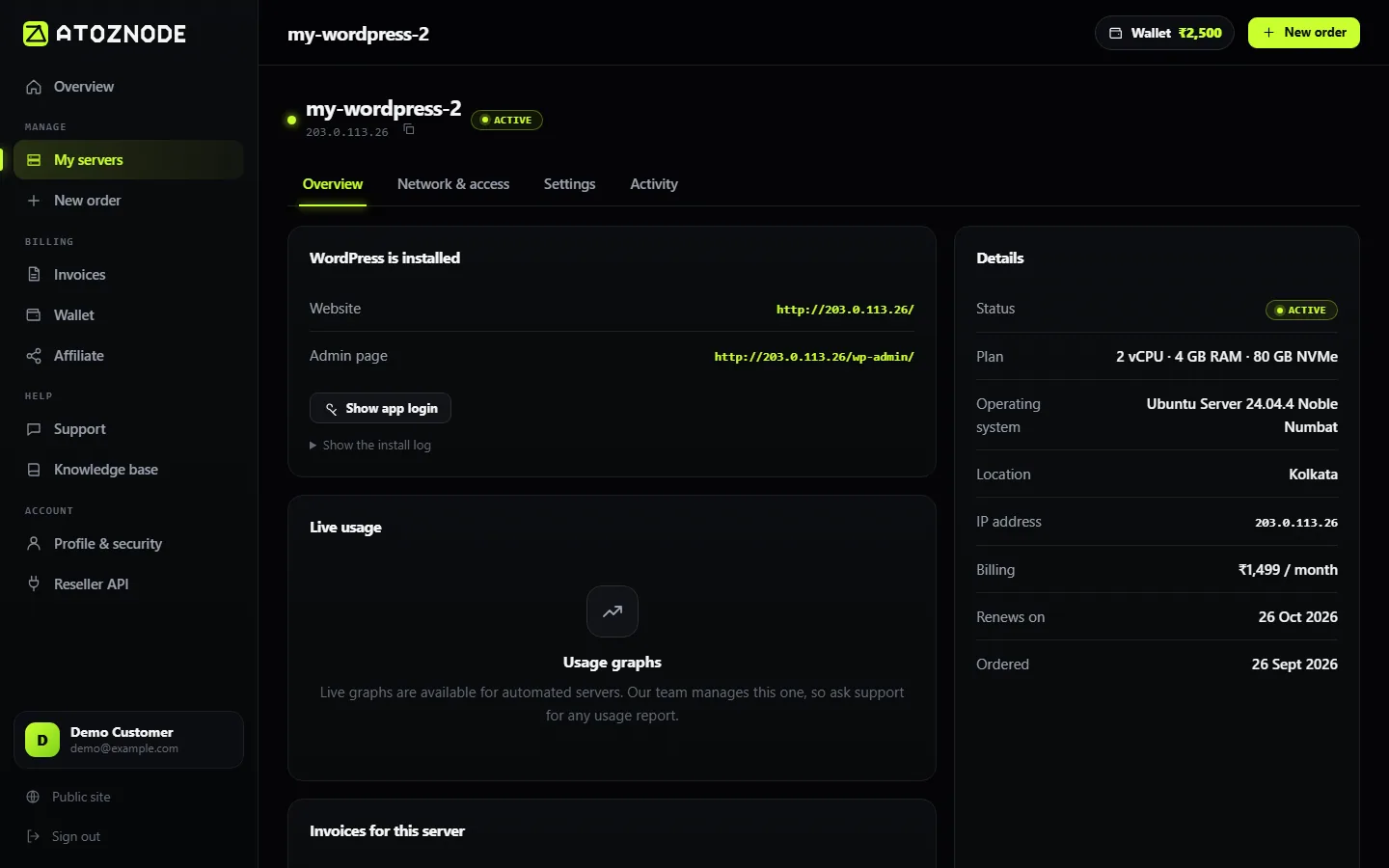
When the install finishes, the card changes to show the address of your app (for example the website address for WordPress) and the versions that were installed. Click the address to open the app.
3. Your app login
Apps that create an account for you, such as WordPress and Nextcloud, have a Show app login button. Press it to see the username and password.
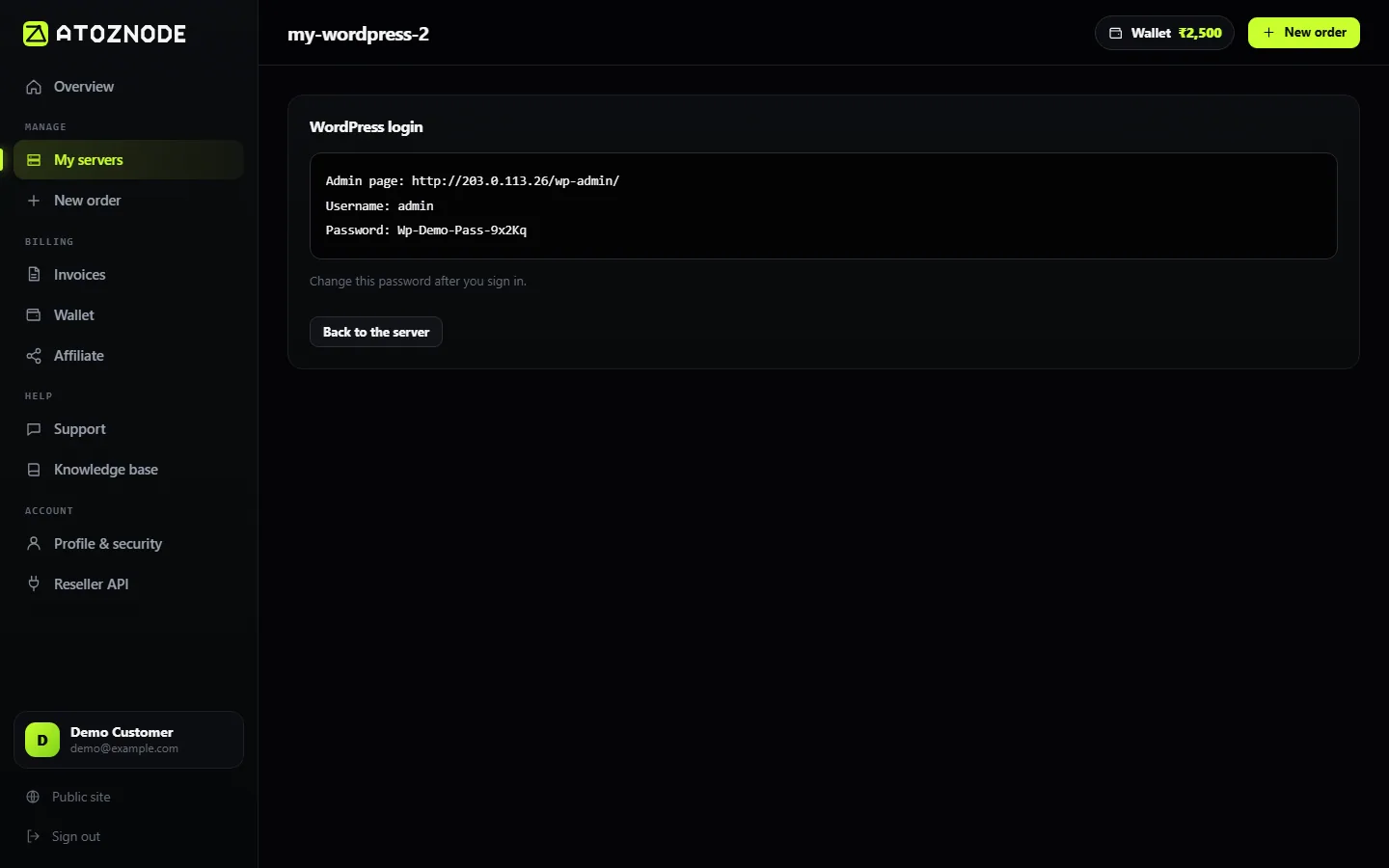
The password is stored encrypted and is hidden until you ask for it. Change it after your first sign-in, and save it in a password manager. Some apps, such as Uptime Kuma, Gitea and n8n, have no ready login. They ask you to create the first account when you open them, and the card tells you so. Do that straight away, because the first person to open the page becomes the administrator.
If the install fails
If something goes wrong, for example the server could not reach a download site, the card shows the reason.
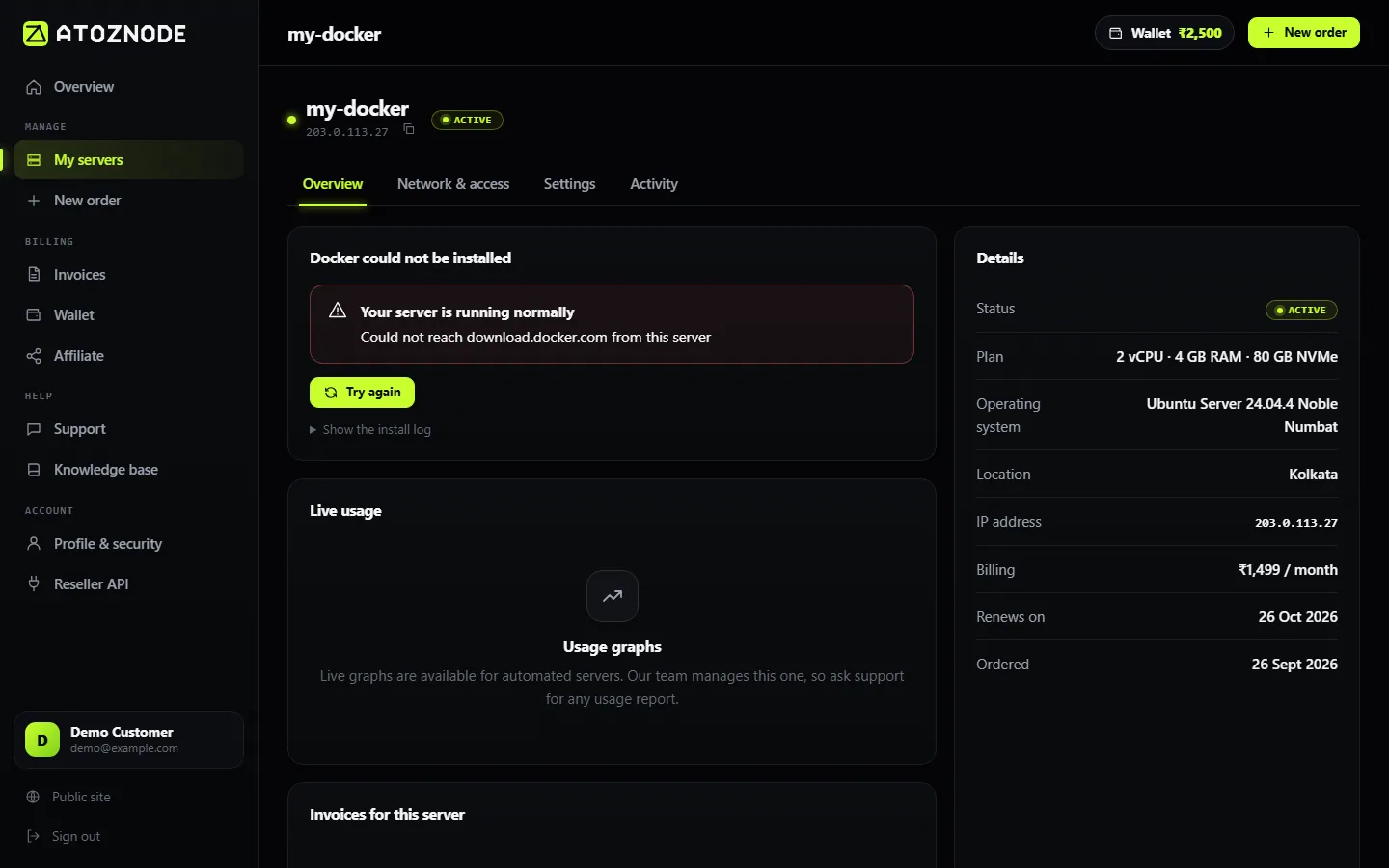
- Press Try again. Most failures are temporary, such as a slow network or a download that timed out.
- You can try up to three times. After that the card shows a link to open a support ticket. Include your server name and the reason shown on the card.
- Your server itself is still yours and works normally. You can sign in with SSH and install the software yourself.
Rebuilding the server
If you rebuild the server (reinstall the operating system), the app is removed with everything else on the server, and the app record on the page is cleared. Choose the app again when you order a new server.
Keep it safe
- Change any password we created for you.
- Point a domain at the server and add HTTPS before real use. See point a domain to your VPS and free SSL with Certbot.
- Read secure your new VPS.