HTTPS keeps your visitors' data private and stops browsers from showing a "Not secure" warning. Let's Encrypt gives out certificates for free, and Certbot installs them for you. This guide uses Nginx on Ubuntu 24.04 LTS. The terminal picture shows example output.
What you need first
- A domain name that already points to your server. Follow how to point your domain to your VPS and wait until
example.comopens your site over plain HTTP. - Nginx serving that site. If you are still setting up, see hosting a Node.js app with PM2 and Nginx.
- Ports 80 and 443 open in the firewall:
sudo ufw allow 'Nginx Full'. - The
server_nameline in your Nginx file must list your real domain names. Certbot uses it to find the right site.
1. Install Certbot
sudo apt update
sudo apt install -y certbot python3-certbot-nginx
2. Request the certificate
Replace the names with your own. List the bare domain and the www name if both should work:
sudo certbot --nginx -d example.com -d www.example.comCertbot asks for an email address, which Let's Encrypt uses for expiry warnings, and for you to accept the terms. It then checks that you control the domain, gets the certificate and edits your Nginx file to use it. Choose to redirect all HTTP traffic to HTTPS when it asks.
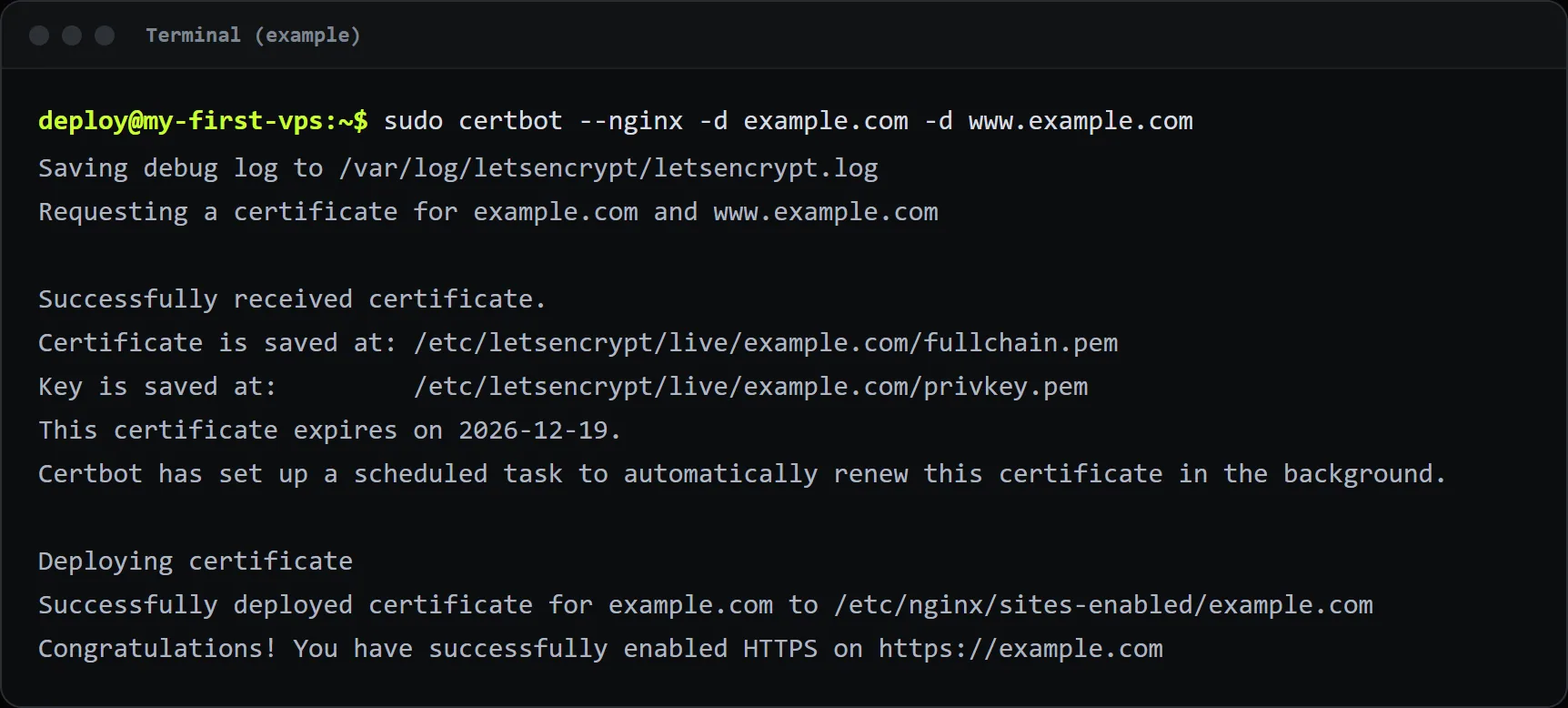
Open https://example.com in your browser. You should see the padlock.
3. Check automatic renewal
Let's Encrypt certificates last about 90 days. The Certbot package sets up a timer that renews them on its own. Test that the renewal will work:
sudo certbot renew --dry-run
sudo systemctl list-timers | grep certbot
The dry run should end with a message that all simulated renewals succeeded. You do not need to do anything else.
Common problems
- "Could not find a matching server block": the
server_namein your Nginx file does not match the domain you gave Certbot. Fix the file, runsudo nginx -t, and try again. - "Connection refused" or a timeout in the challenge: port 80 is blocked, or the domain points to a different IP address. Check the DNS record and the firewall.
- The certificate is issued but the browser still warns: you may be looking at a cached page, or a hard-coded
http://link or image is on the page. Load the page in a private window and fix mixed content. - Too many certificates: Let's Encrypt limits how often a domain can request certificates. Wait a while before trying again, and use
--dry-runwhile testing.
Keeping HTTPS healthy
Renewals need port 80 open, so leave it open for the redirect. Check your certificate dates with sudo certbot certificates. If you add another domain later, run Certbot again with all the names you want on the certificate.