A one-click app is software that AtoZNode installs on your new VPS for you, so you do not have to type the install commands yourself. You choose it while ordering, and it is set up once the server is running. This guide shows every step. The screenshots use a demo account, so the names and numbers are made up.
Two ways to order
- Plain server: choose an operating system only. You get a clean Linux server, exactly as before.
- Server with an app: choose an app such as WordPress or Docker. The server is created first, then the app is installed on it automatically.
Both cost the same. The app itself is free software; you only pay for the server plan.
1. Choose a plan
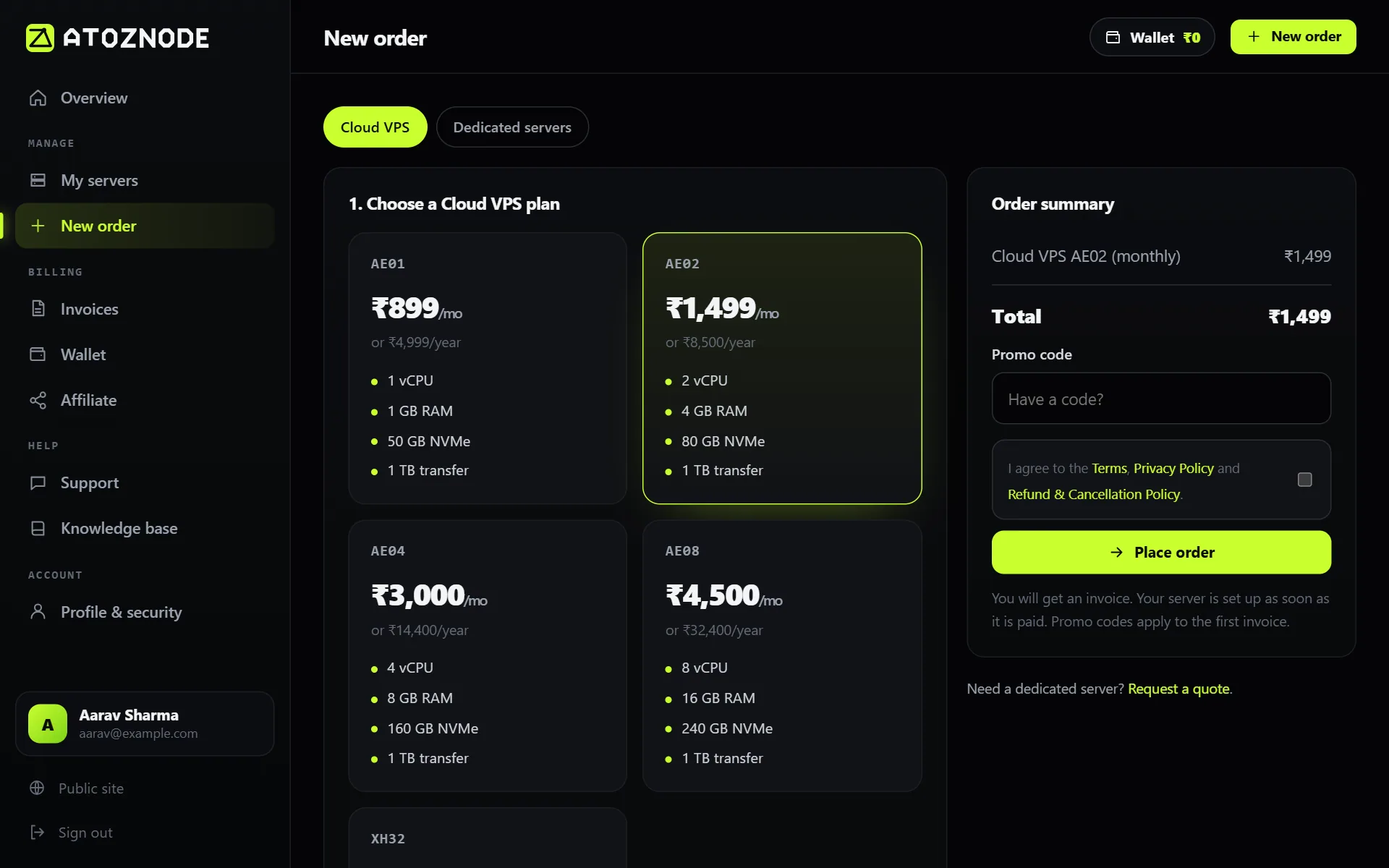
Open New order and pick a plan. Some apps need more memory than the smallest plan has. Nextcloud, CloudPanel, Coolify, n8n, Kubernetes (k3s) and Ubuntu Desktop need at least 2 GB of RAM, and the other apps need at least 1 GB. If the plan is too small, the app shows as unavailable. See which app to choose for the full list.
2. Choose an image
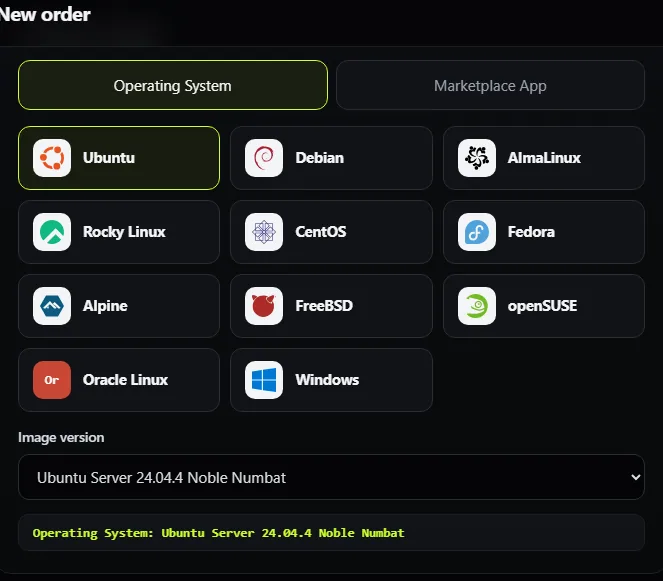
The card called Choose an image has two tabs, like the image chooser on other cloud providers.
Operating System tab: pick a family (Ubuntu, Debian, AlmaLinux, Rocky Linux, Windows and others) and then a version from the list. Use this when you want a plain server.
Marketplace App tab: pick an app tile. You can type in the search box to find one. When you pick an app, the base operating system is chosen for you (Ubuntu 24.04 where available), and the summary line under the tiles tells you what you will get.
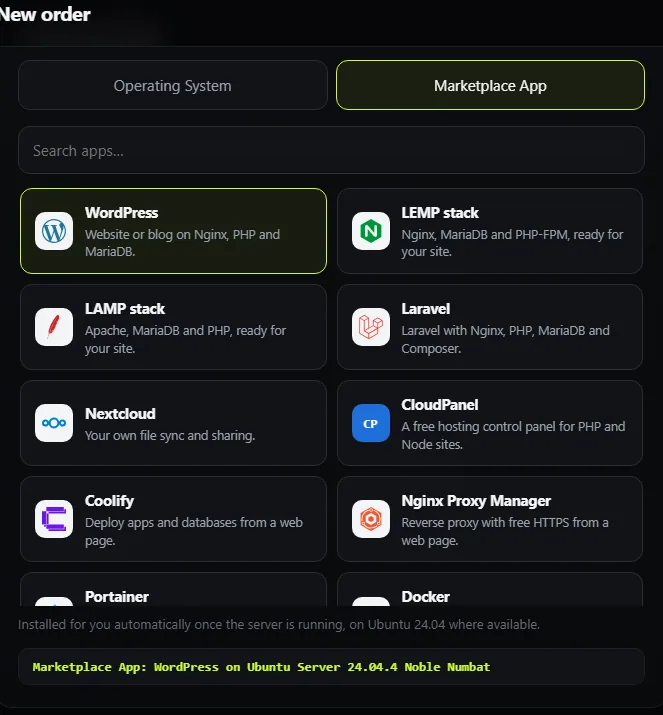
To remove the app and order a plain server, go back to the Operating System tab and pick a system.
3. Set the hostname and place the order
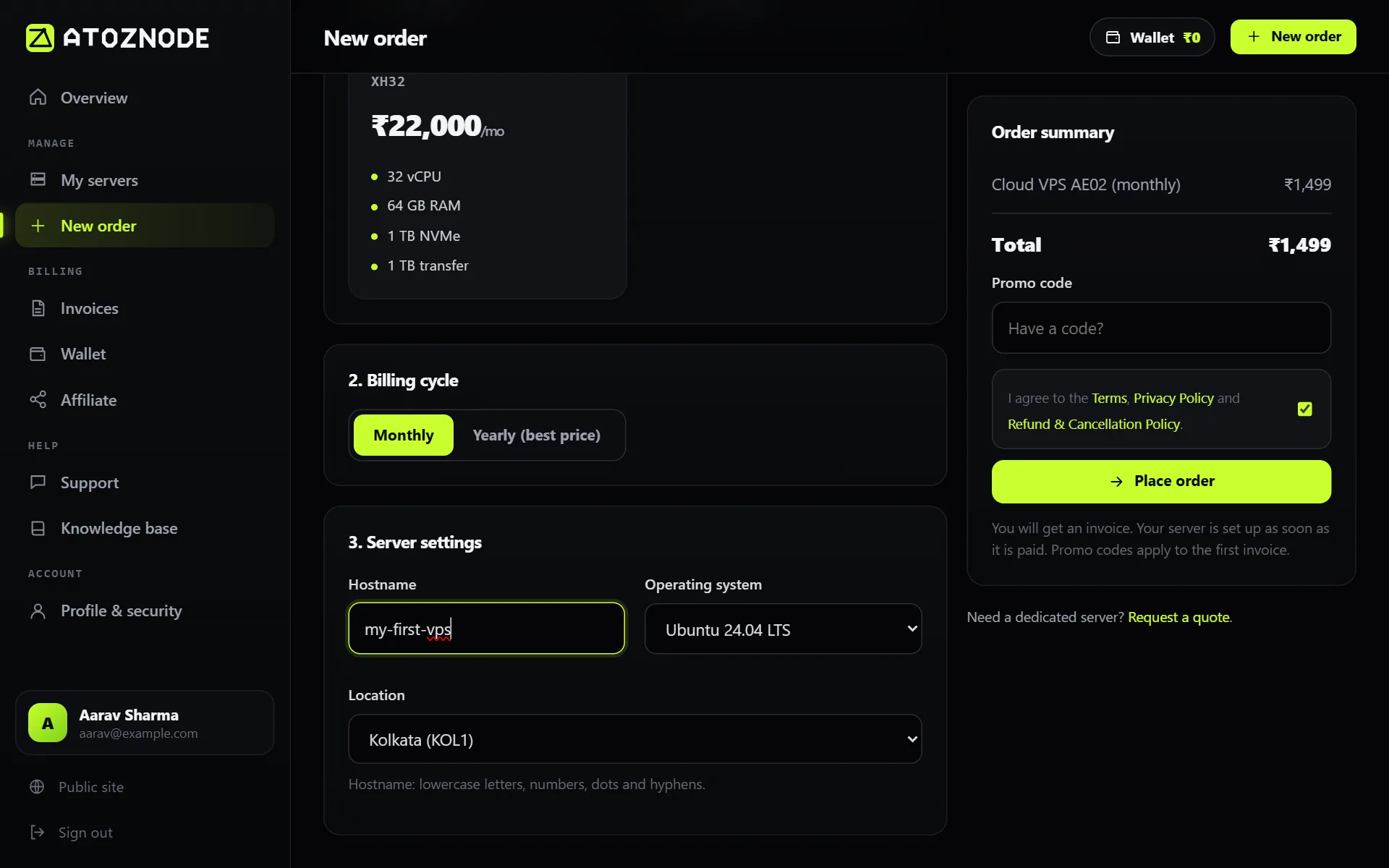
Give the server a hostname, choose the billing cycle and location, accept the Terms and press Place order. The price on the right shows the total.
Then pay the invoice as usual. See how to pay for your server if you need help.
4. Wait for the install
After payment the server is created, and then the app is installed. Follow the progress on the server page. What you will see is explained in what happens after you order an app.
Good to know
- Apps are installed on a new server. You choose them when you order, not later on an existing server.
- Apps need a Linux image: Ubuntu 20.04 or newer, or Debian 11 or newer. Nextcloud and Ubuntu Desktop are set up on Ubuntu only.
- Only the script for the app you chose is run, once, on your own server. The install happens on your server, not ours.
- Logos belong to their owners and are shown only to identify the software.