Everything on AtoZNode is priced and billed in Indian rupees. This guide shows every way to pay, where to find your invoices, and how renewals work. The screenshots use a demo account.
Paying an invoice online
When you order a server, or when a renewal invoice is due, you can pay it by:
- UPI: any UPI app, such as Google Pay, PhonePe or Paytm.
- Cards: debit and credit cards.
- Net banking: from the major Indian banks.
Payments are handled by Razorpay. AtoZNode never sees or stores your card, UPI or bank details.
- Open the invoice and press Pay online, or go straight to the payment page after placing an order.
- Press the Pay button. A secure Razorpay window opens.
- Choose UPI, card or net banking and confirm.
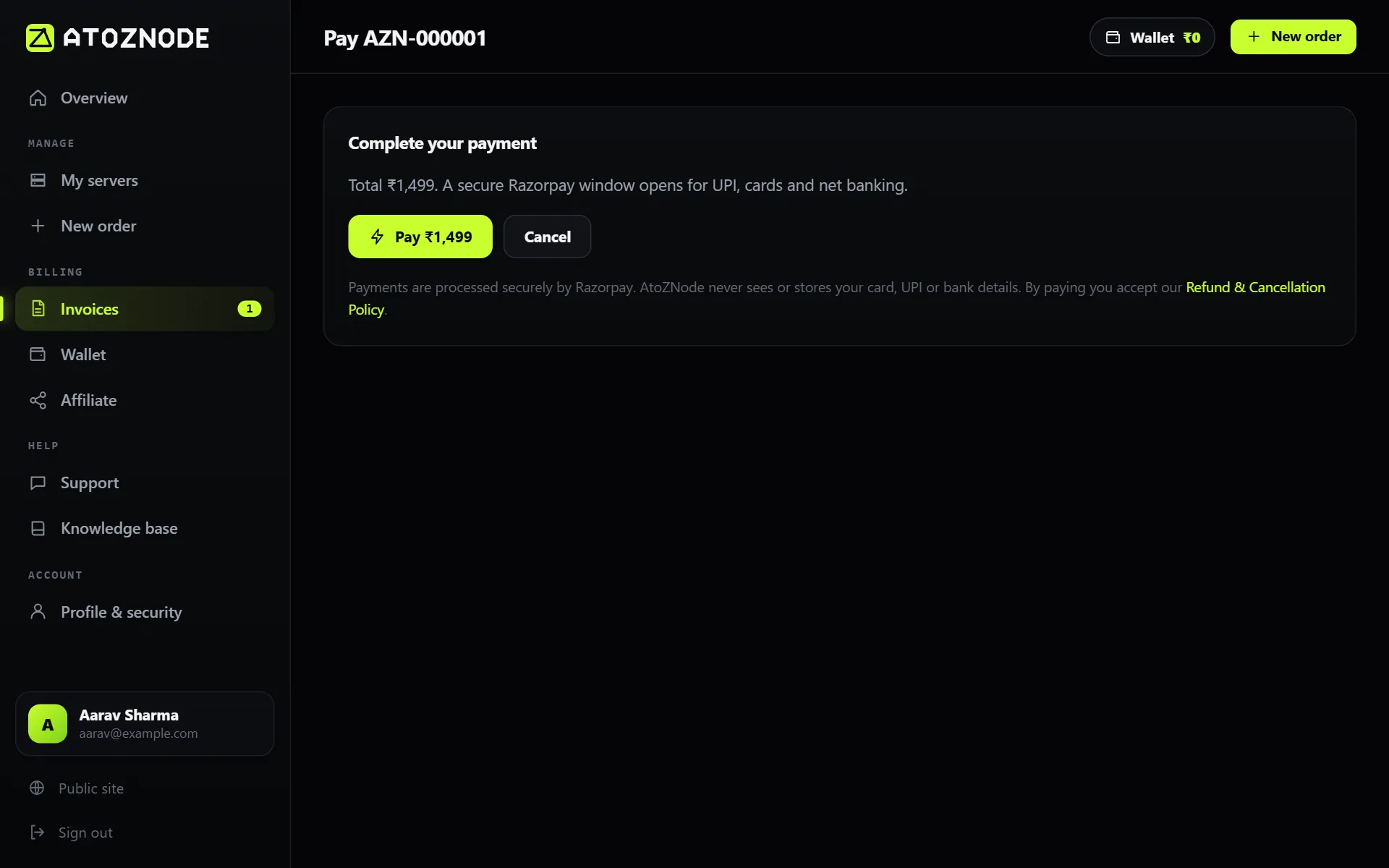
The invoice turns to paid as soon as the payment is confirmed, and the page updates when you return from the payment window. Setting up a new server starts automatically after payment.
Paying from your wallet
Your wallet is a prepaid balance. It is useful if you want to pay quickly, avoid typing payment details each time, or let renewals happen automatically.
- Open Wallet in the left menu.
- Enter an amount and press Create top-up invoice.
- Pay that invoice online. The amount is added to your balance when it is paid.
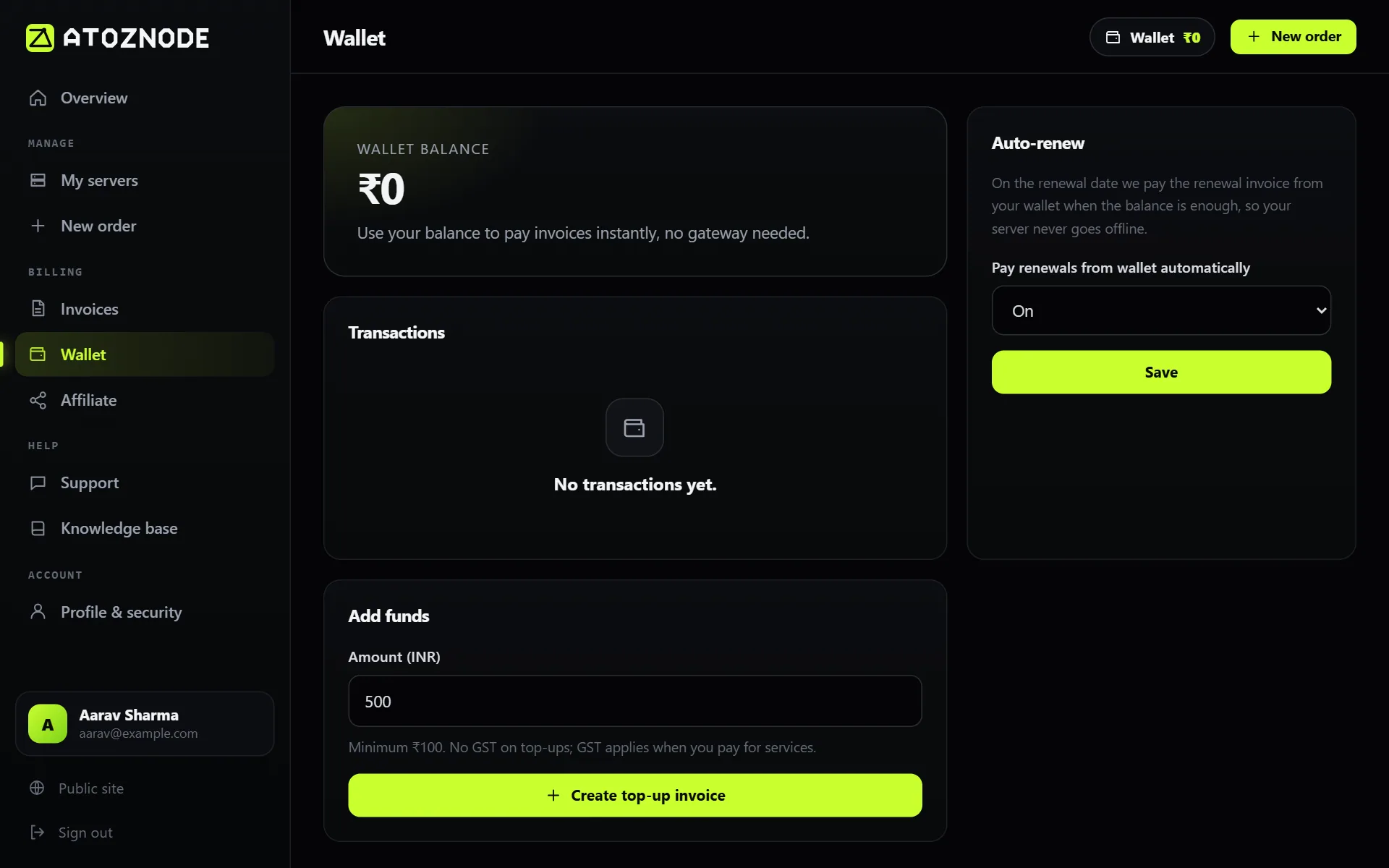
When an invoice is due and your wallet holds enough, an extra button appears on the invoice to pay from the wallet. Top-ups have no GST added. GST applies when you pay for services. Unused wallet money can be refunded to the original payment method on request.
Automatic renewals
A section on the Wallet page controls Auto-renew. When it is on and your balance is high enough, we pay the renewal invoice from your wallet on the due date, so your server never goes offline by accident. Turn it off if you prefer to pay each invoice yourself.
Invoices
Open Invoices in the left menu to see all of them, with their amounts, status and due dates. Open one to see the full breakdown. Press Print / save PDF to keep a copy or send it to your accountant.
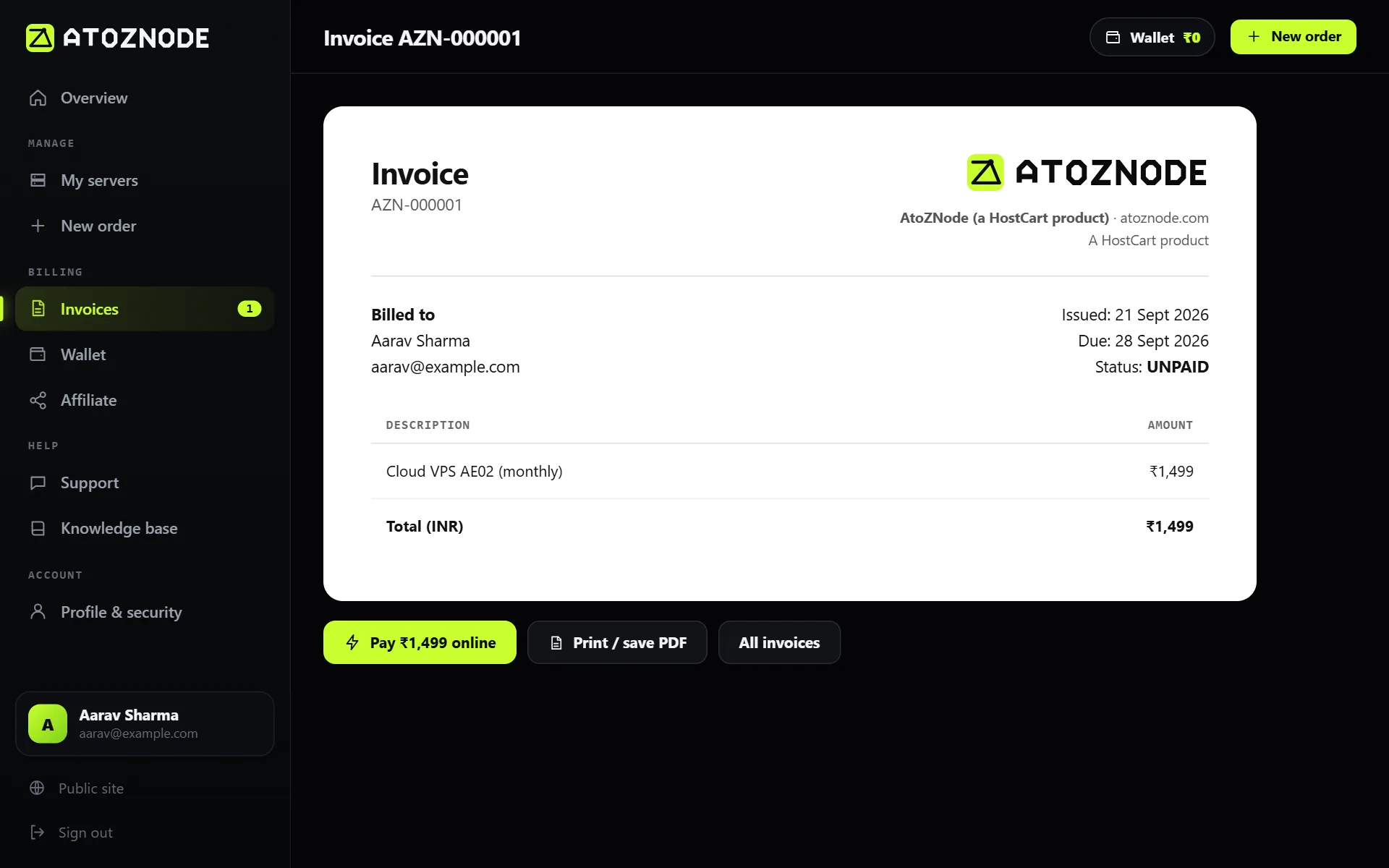
To have your company details on invoices, fill in your name, address and GSTIN on the Profile page. When GST applies, it is shown as a separate line on the invoice.
Renewals, reminders and what happens if you do not pay
About a week before a server renews, we create the renewal invoice and email you. We send reminders 3 days and 1 day before the due date. If the invoice is still unpaid after the due date, the server is suspended. We never delete a server automatically. Pay the invoice and it switches back on straight away. Your data is kept.
Refunds and cancellation
You can cancel a service at any time from its page, and cancelling stops future renewals. Refunds are covered by our refund and cancellation policy, for example when a server could not be delivered or you were charged twice. To ask for one, open a Billing ticket from the Support page with your invoice number.
Problems with a payment
- The money left my account but the invoice is unpaid: wait a few minutes and refresh. If it still shows unpaid, open a Billing ticket with the payment reference from your bank or UPI app.
- The payment window did not open: allow pop-ups and check your connection, then press Pay again.
- A UPI payment failed: try again, or use a card or net banking. Your bank may also block a large first payment until you approve it.
New here? Start with how to order your first VPS.