Docker runs your apps in containers, which keeps their dependencies separate and makes moving between servers easy. This guide installs the official Docker Engine and the Compose plugin on Ubuntu 24.04 LTS. The terminal picture shows example output.
Before you begin
Connect to your VPS and secure it. Docker works on any plan, but give it room. Plan on at least 2 GB of RAM if you will run several containers. See how much RAM a VPS needs.
1. Remove old packages
Ubuntu may have unofficial Docker packages. Remove them first. It is fine if the command says none are installed:
for pkg in docker.io docker-doc docker-compose podman-docker containerd runc; do sudo apt-get remove -y $pkg; done2. Add Docker's repository
sudo apt update
sudo apt install -y ca-certificates curl
sudo install -m 0755 -d /etc/apt/keyrings
sudo curl -fsSL https://download.docker.com/linux/ubuntu/gpg -o /etc/apt/keyrings/docker.asc
sudo chmod a+r /etc/apt/keyrings/docker.asc
Then add the repository. This is one long command, so copy all of it:
echo "deb [arch=$(dpkg --print-architecture) signed-by=/etc/apt/keyrings/docker.asc] https://download.docker.com/linux/ubuntu $(. /etc/os-release && echo "${UBUNTU_CODENAME:-$VERSION_CODENAME}") stable" | sudo tee /etc/apt/sources.list.d/docker.list > /dev/null3. Install Docker
sudo apt update
sudo apt install -y docker-ce docker-ce-cli containerd.io docker-buildx-plugin docker-compose-plugin
Docker starts on its own and comes back after every reboot.
4. Check that it works
sudo docker run hello-world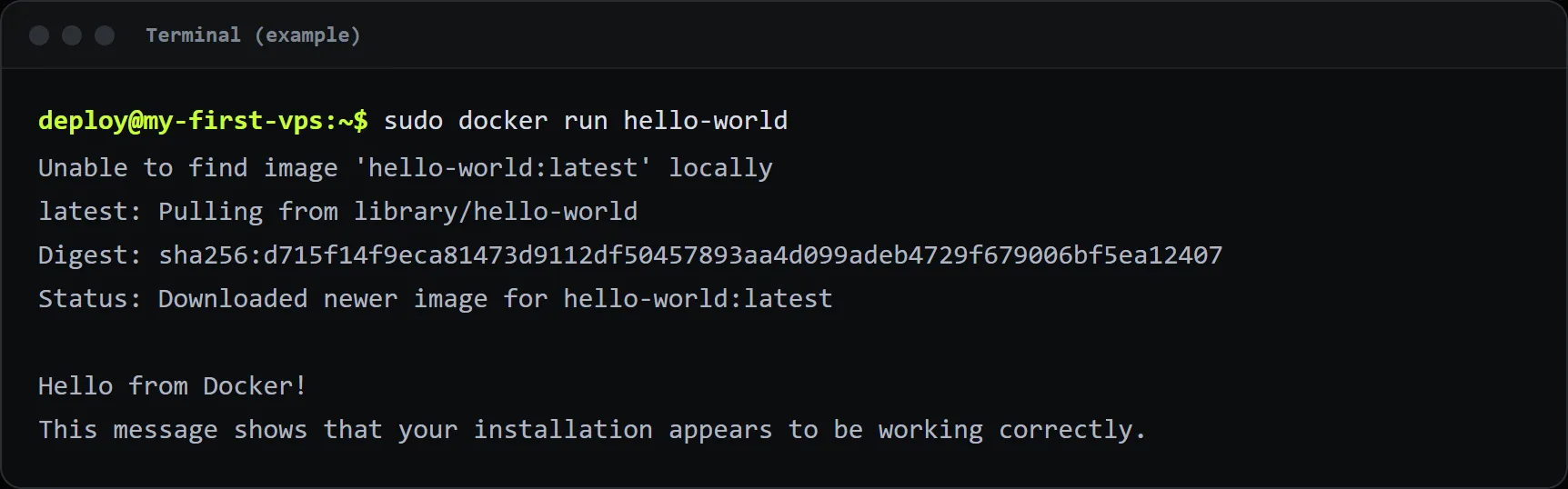
If you see the "Hello from Docker!" message, the installation is working.
5. Use Docker without typing sudo
Add your user to the docker group, then log out and back in:
sudo usermod -aG docker $USERA word of caution: anyone in the docker group can effectively become root on the server, so only add people you trust.
6. Try Docker Compose
Compose starts several containers from one file. Make a folder with a file named compose.yaml:
services:
  web:
    image: nginx:stable
    ports:
      - "127.0.0.1:8080:80"
    restart: unless-stopped
Start it, look at it and stop it:
docker compose up -d
docker compose ps
docker compose down
The 127.0.0.1 in the port line keeps the container reachable only from the server itself. Put Nginx in front of it, as in hosting a Node.js app with Nginx, instead of opening extra ports to the internet.
An important firewall warning
Docker changes the firewall rules itself. A port you publish with -p 8080:80 can be reachable from outside even when ufw blocks it. Publish ports on 127.0.0.1 unless you really want them public, and check with sudo ss -tlnp what is listening.
Everyday commands
docker pslists running containers, anddocker ps -aincludes stopped ones.docker logs -f NAMEfollows a container's output.docker system dfshows how much disk Docker uses.docker system pruneremoves unused containers, networks and images. Read what it lists before you agree.
Keep disks from filling up
Images and logs grow quietly. Prune old images now and then, and limit container logs by adding this to /etc/docker/daemon.json, then run sudo systemctl restart docker:
{
  "log-driver": "json-file",
  "log-opts": { "max-size": "10m", "max-file": "3" }
}