Your account controls your servers, so it deserves more than a password. AtoZNode supports two extra layers: two-step verification with an authenticator app, and passkeys. You can use either one, or both. This takes about two minutes.
Two-step verification with an authenticator app
With two-step verification on, signing in needs your password and a 6-digit code from an app on your phone. A stolen password alone is no longer enough. Use any standard authenticator app, such as Google Authenticator, Microsoft Authenticator, Authy or 1Password.
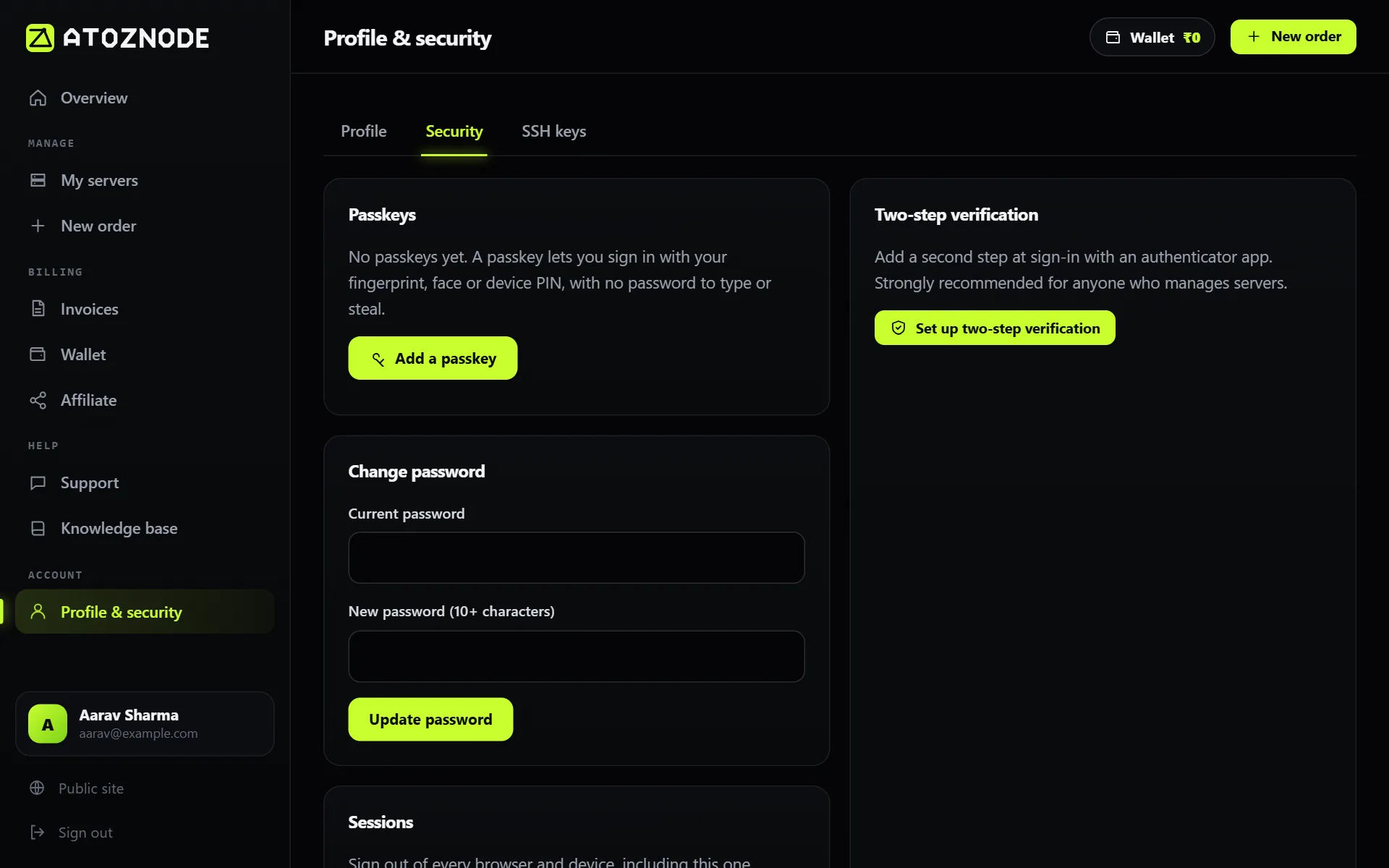
- Sign in and open Profile & security in the left menu, then the Security tab.
- Under two-step verification, press Set up two-step verification.
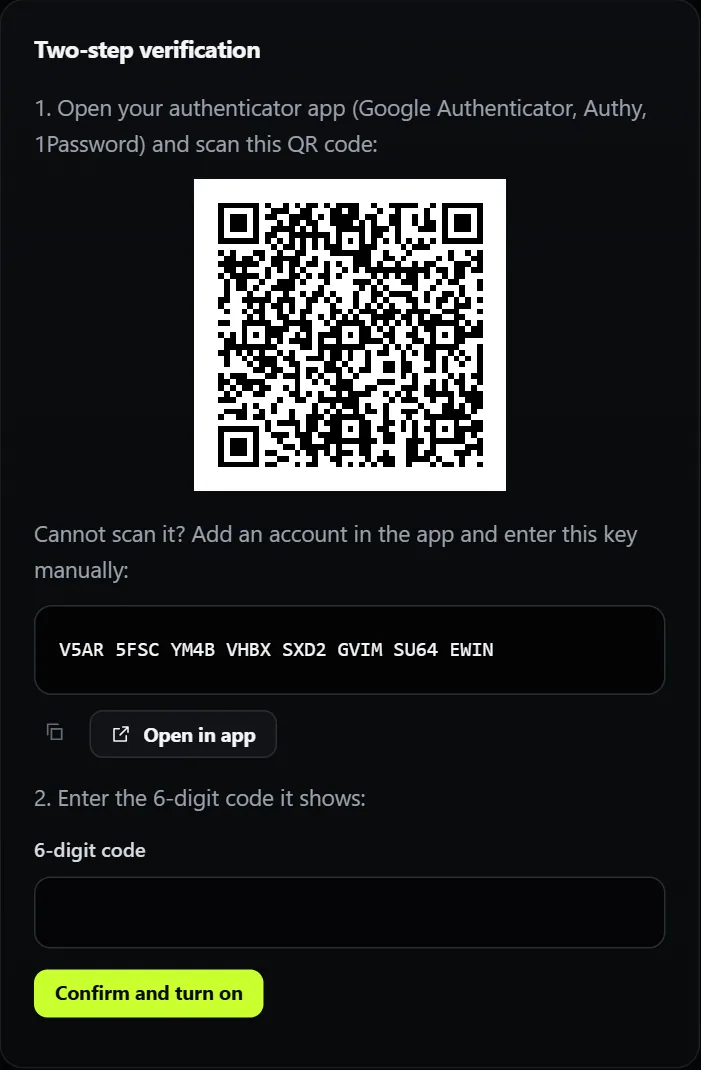
- Open your authenticator app, choose to add an account, and scan the QR code on the page. If you cannot scan, choose to enter a key manually and type the key shown below the picture.
- Type the 6-digit code that the app shows and press Confirm and turn on.
- Save your backup codes. After you confirm, the page shows 8 codes that appear only once. Each one works a single time if you lose your phone. Store them in a password manager or print them and keep them somewhere safe.
From now on, after you enter your password you will be asked for a code. Each code works only once, so if it is rejected, wait for the next one.
If a code does not work
- Check the date and time on your phone. Set them to automatic, because the codes depend on the exact time.
- Do not reuse a code. Wait for the app to show a new one.
- Make sure you chose the right account in the app if you have several.
- Use a backup code if you have lost the phone.
Turning it off
Open the same Security tab and press the turn-off button. You will need your password and a current code. Turning it off is not recommended for anyone who manages servers.
Passkeys
A passkey lets you sign in with your fingerprint, your face or your device PIN, with no password to type. It cannot be guessed, and it only works on the real AtoZNode website, so it is protected from fake login pages.
- On the Security tab, press Add a passkey.
- Your device asks you to confirm with a fingerprint, face or screen lock. Approve it.
- Give the passkey a name you will recognise, such as "My laptop".
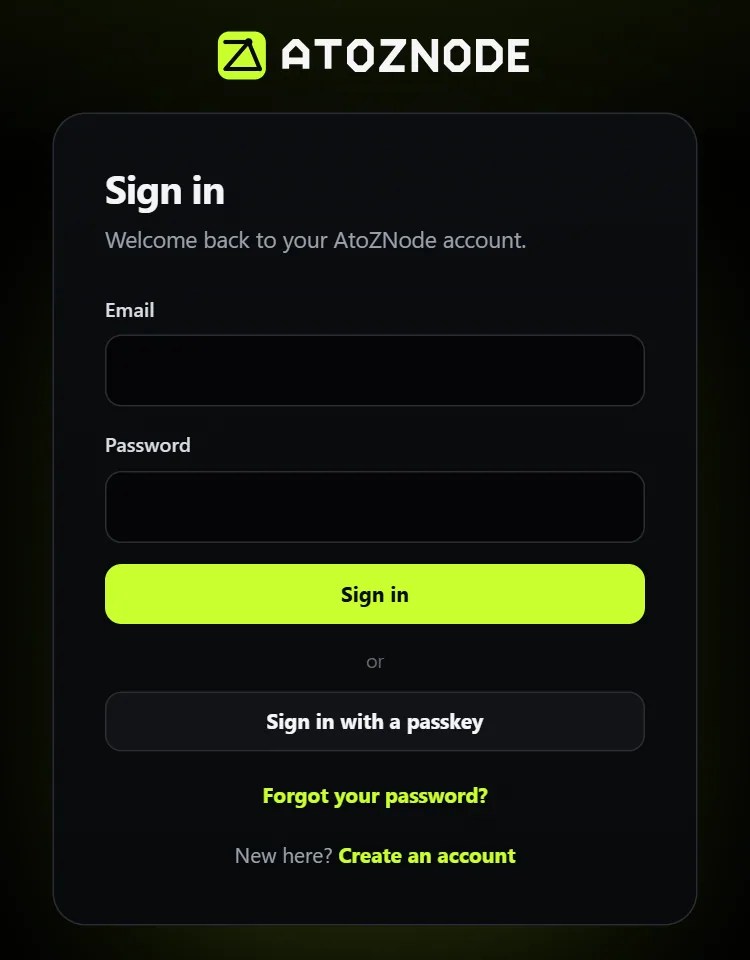
On the sign-in page you will now see Sign in with a passkey. Press it and confirm on your device.
You can add several passkeys, for example one for your phone and one for your laptop, and remove any of them from the same page. Passkeys are saved on your device or in your password manager, so a lost device does not have to lock you out. Keep your password or a backup code as a second way in.
If you also use two-step verification, sign-in with a passkey still asks for your code, so both protections stay on.
Good habits
- Use a long, unique password that you do not use anywhere else.
- Turn on two-step verification even if you also use a passkey.
- Keep your backup codes somewhere other than your phone.
- Never share a code with anyone. AtoZNode staff will never ask for it.
- Protect the server itself too: secure your VPS.